かなしみ
Amazonで決済ができない
カード払いでカメラをポチった。
日本語が入力できてMikutterが使えるようになるまでやったことを書いていく
antergos-2015.01.11-x86_64を使用アップデート
$ sudo pacman -SyuAntergosキーリング更新
$ sudo pacman -Syy antergos-keyring日本語フォント(ttf-koruri)インストール
$ yaourt -S ttf-koruriフォントキャッシュ更新
$ fc-cache -vfVimインストール
$ yaourt -S vimトラックポイント設定
$ sudo vim ./etc/X11/xorg.conf.d/20-thinkpad.confSection "InputClass"
Identifier "Trackpoint Wheel Emulation"
MatchProduct "TPPS/2 IBM TrackPoint|DualPoint Stick|Synaptics Inc. Composite TouchPad / TrackPoint|ThinkPad USB Keyboard with TrackPoint|USB Trackpoint pointing device|Composite TouchPad / TrackPoint"
MatchDevicePath "/dev/input/event*"
Option "EmulateWheel" "true"
Option "EmulateWheelButton" "2"
Option "Emulate3Buttons" "false"
Option "XAxisMapping" "6 7"
Option "YAxisMapping" "4 5"
EndSection中ボタンとトラックポイントでスクロール出来るようにする
$ gpointing-device-settinfsホイールエミュレーションを使用するにチェックを入れ、ボタンを2に変更する
指紋証明の作成
$ fprintd-enroll onodaionodaiの部分は好きな名前でいい
指をスキャンするように求められるので、指示に従う
sudoとかログイン画面で指紋認証出来るようにする
$ sudo vim /etc/pam.d/system-local-login
$ sudo vim /etc/pam.d/lightdm
以下をauthセクションの一番上に追加
auth sufficient pam_fprintd.soIME(fcitx & Mozc)インストール
$ yaourt -S fcitx fcitx-mozc fcitx-im fcitx-configtool
$ vim .xprofile
export GTK\_IM\_MODULE=fcitx
export QT\_IM\_MODULE=fcitx
export DefaultIMModule=fcitx
export XMODIFIERS=@im=fcitx
export XMODIFIER=@im=fcitxMikutterインストール
$ yaourt -S mikutterメモメモ
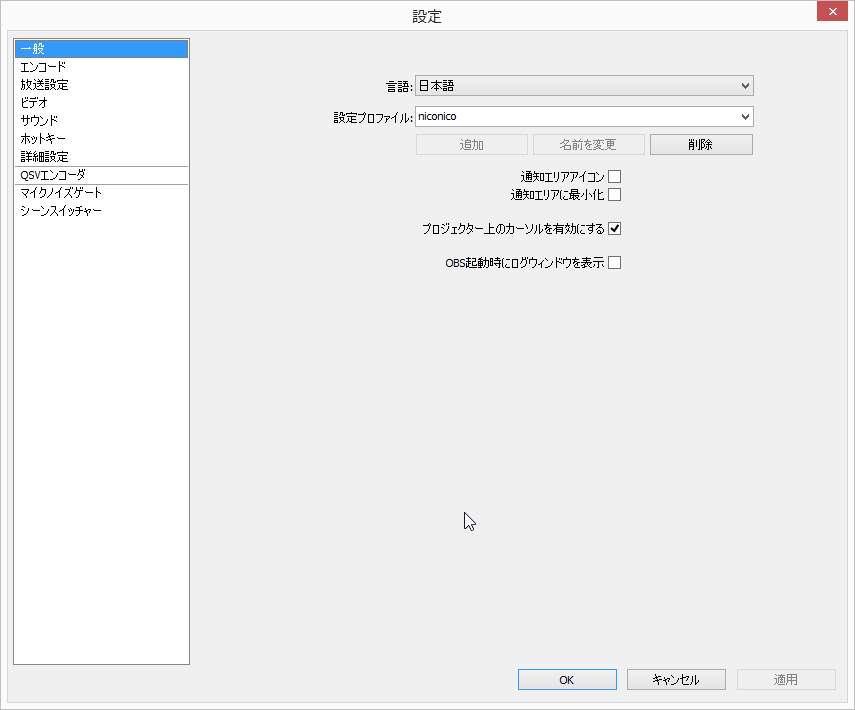
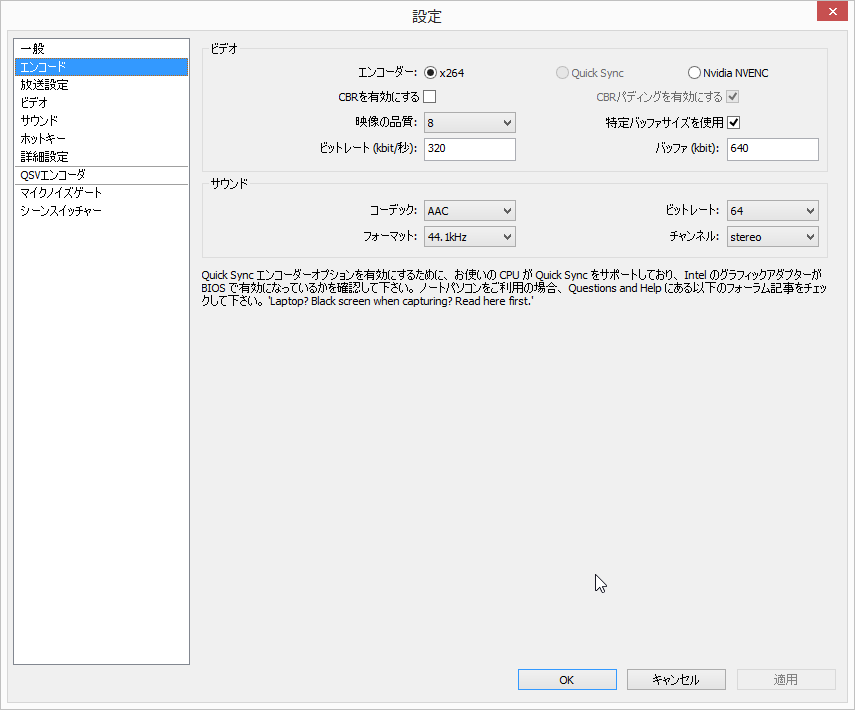
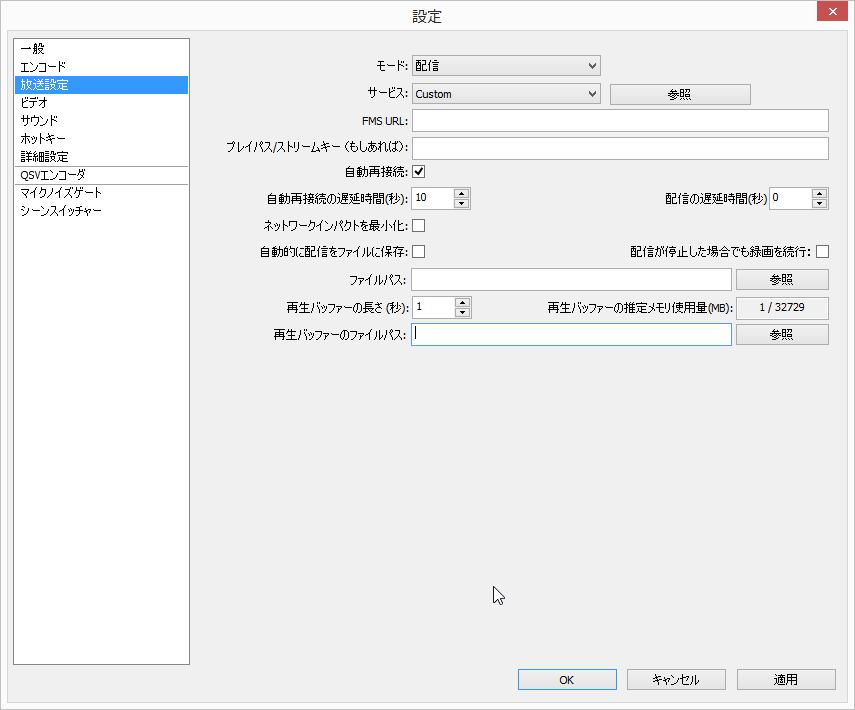
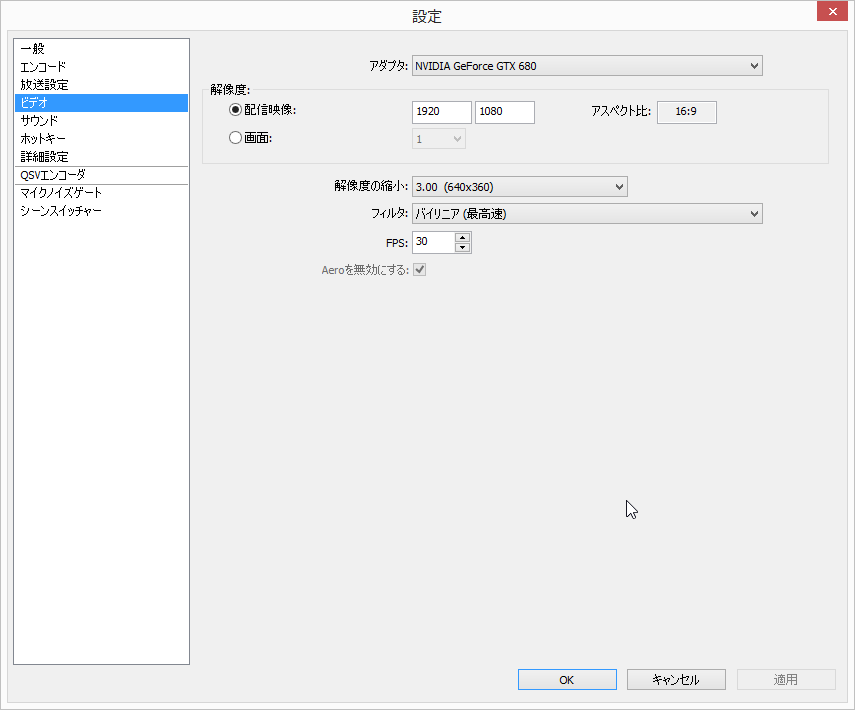
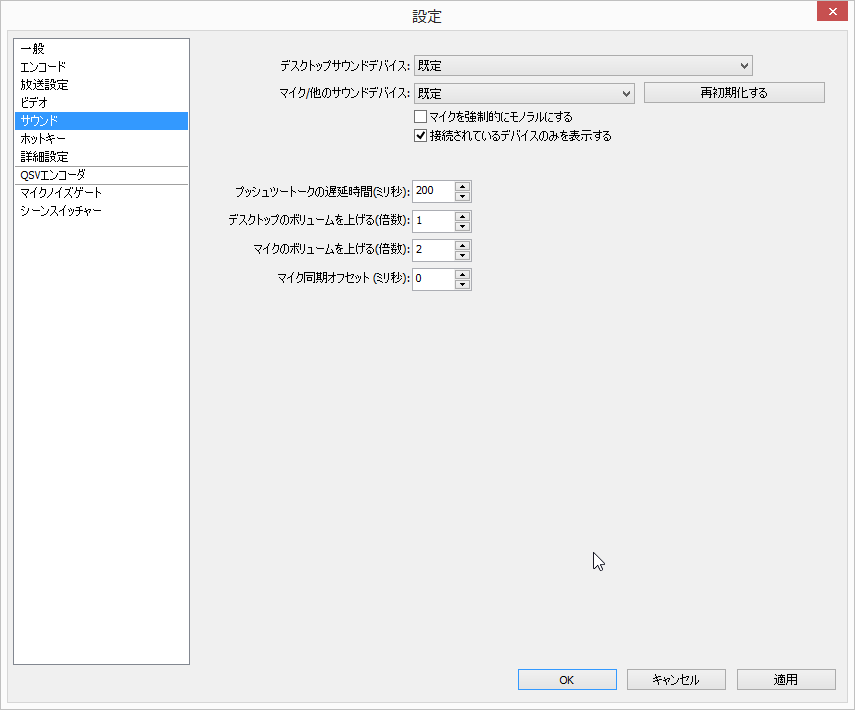
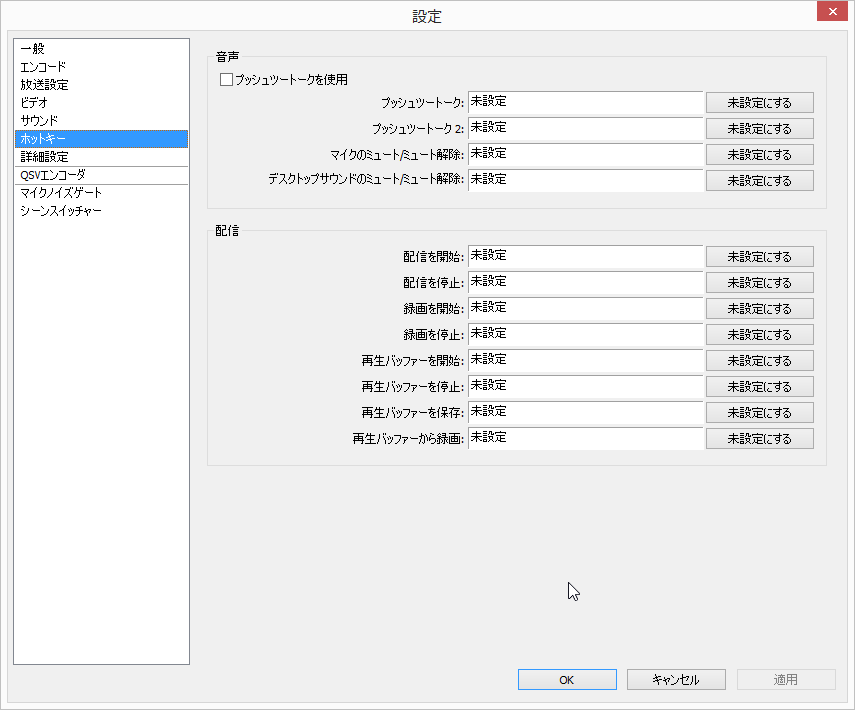
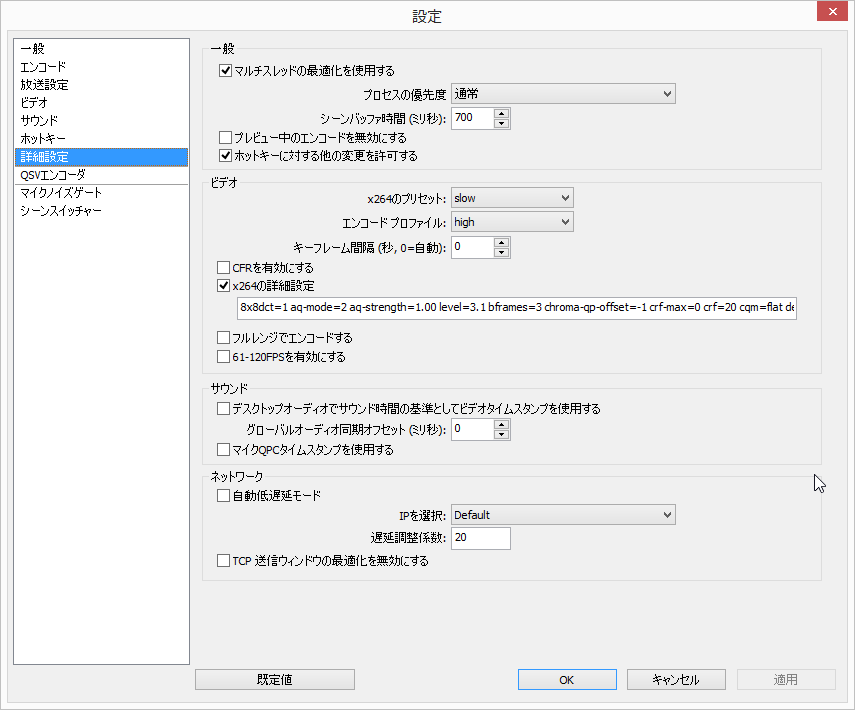
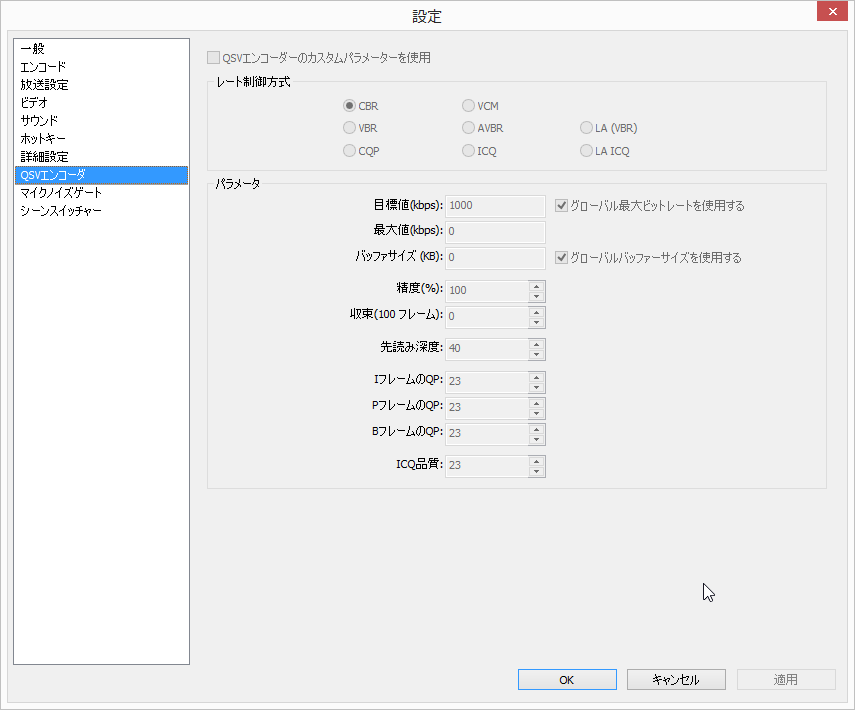
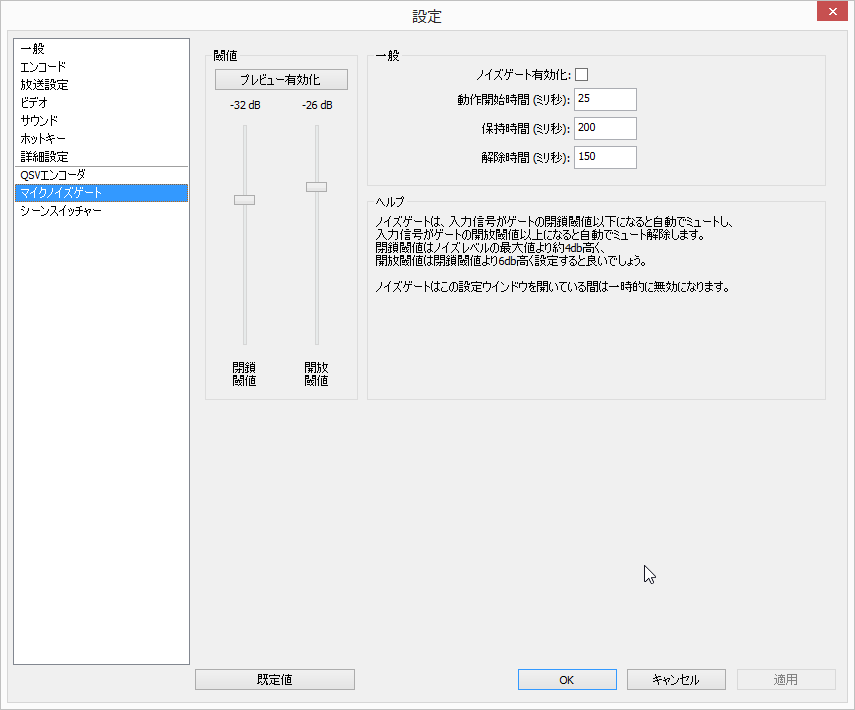
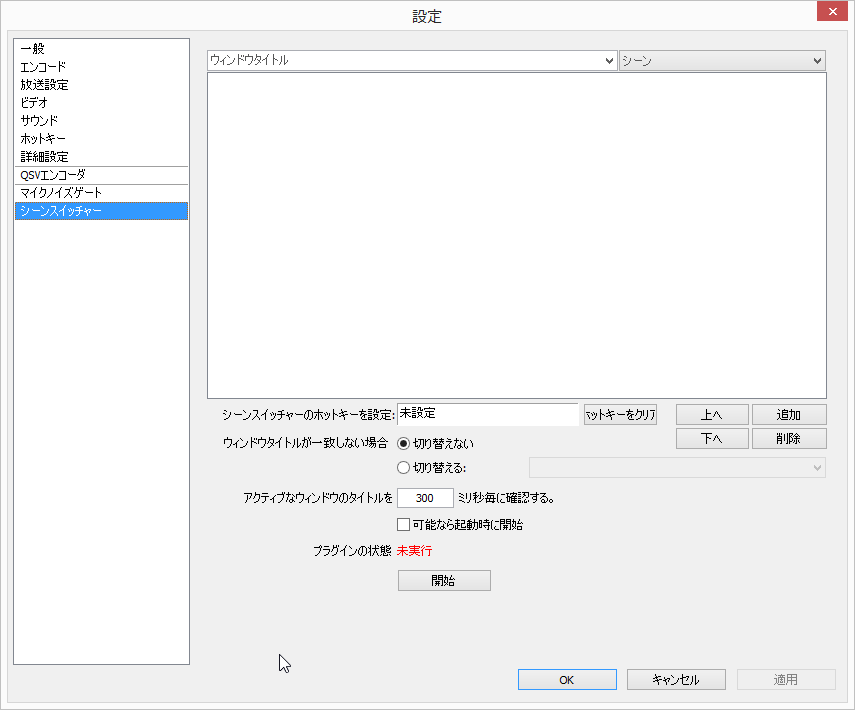
x264の詳細設定
<pre><code class=“language-textfile line-numbers line-numbers”>8x8dct=1 aq-mode=2 aq-strength=1.00 level=3.1 bframes=3 chroma-qp-offset=-1 crf-max=0 crf=20 cqm=flat deblock=-1,-1 direct=auto ipratio=1.30 me=umh merange=16 keyint=300 min-keyint=30 mixed-refs=1 threads=0 nr=0 b-adapt=2 b-bias=0 b-pyramid=2 no-dct-decimate=1 no-fast-pskip=1 partitions=all profile=high psy=1 psy-rd=0.0,0.0 qcomp=0.70 qpmax=69 qpmin=20 qpstep=8 ratetol=8.0 rc-lookahead=30 ref=6 scenecut=50 subme=10 trellis=2 vbv-init=0.9 weightb=1 weightp=2 colormatrix=smpte170m</code></pre>
その1からの続き
Chinachuをインストールしまうs
実行ユーザの作成
$ sudo adduser chinachu
$ su - chinachu
GithubからChinachuをクローン
$ git clone git://github.com/kanreisa/Chinachu.gitChinachuのインストール
$ cd ~/chinachu/
$ ./chinachu installer以下のように表示されるので1) Auto (full)を選択
Chinachu Installer Menu:
[!] These are installed under all /home/chinachu/downloads/Chinachu/...
[!] Recommend the Auto installation.
1) Auto (full)		4) Node.js Environment	7) ffmpeg
2) Auto (fast)		5) Node.js Modules
3) submodule		6) epgdump
what do you install? >
設定ファイルの編集
このへんを見ながらいい感じに編集
チャンネルの設定はこのへんを見ながら、住んでいる地域に合わせていい感じに変更してください
ちなみにボクはケツカンマの消し忘れで10分ぐらいjsonと格闘してました
$ cp config.sample.json config.json
$ vi config.json
空の録画ルールファイルを作成
$ echo "[]" > rules.json 動作確認
$ vi ./chinachu service operator execute以下のように表示されることを確認したら、Ctrl + Cで抜ける
9 Feb 00:01:10 - READ: `/home/chinachu/downloads/Chinachu/data/reserves.json` is updated.
9 Feb 00:01:10 - READ: `/home/chinachu/downloads/Chinachu/data/recorded.json` is updated.
9 Feb 00:01:11 - SPAWN: node app-scheduler.js -f (pid=3432)
9 Feb 00:01:11 - STREAM: ./log/scheduler
EPG取得テスト
$ ./chinachu update -f起動スクリプト設定
$ ./chinachu service operator initscript > /tmp/chin achu-operator
$ ./chinachu service wui initscript > /tmp/chinachu- wui
$ su -
# cd /tmp
# chown root:root chinachu-*
# chown root:root /tmp/chinachu-operator /tmp/chinachu-wui
# chmod +x /tmp/chinachu-operator /tmp/chinachu-wui
# mv /tmp/chinachu-operator /tmp/chinachu-wui /etc/init.d/
# update-rc.d chinachu-operator defaults
# update-rc.d chinachu-wui defaults
サービスを開始
# service chinachu-operator start
# service chinachu-wui start